The Core Concept: Keyframe Animation with Moments
How Matchboard turns snapshots into fluid tactical motion
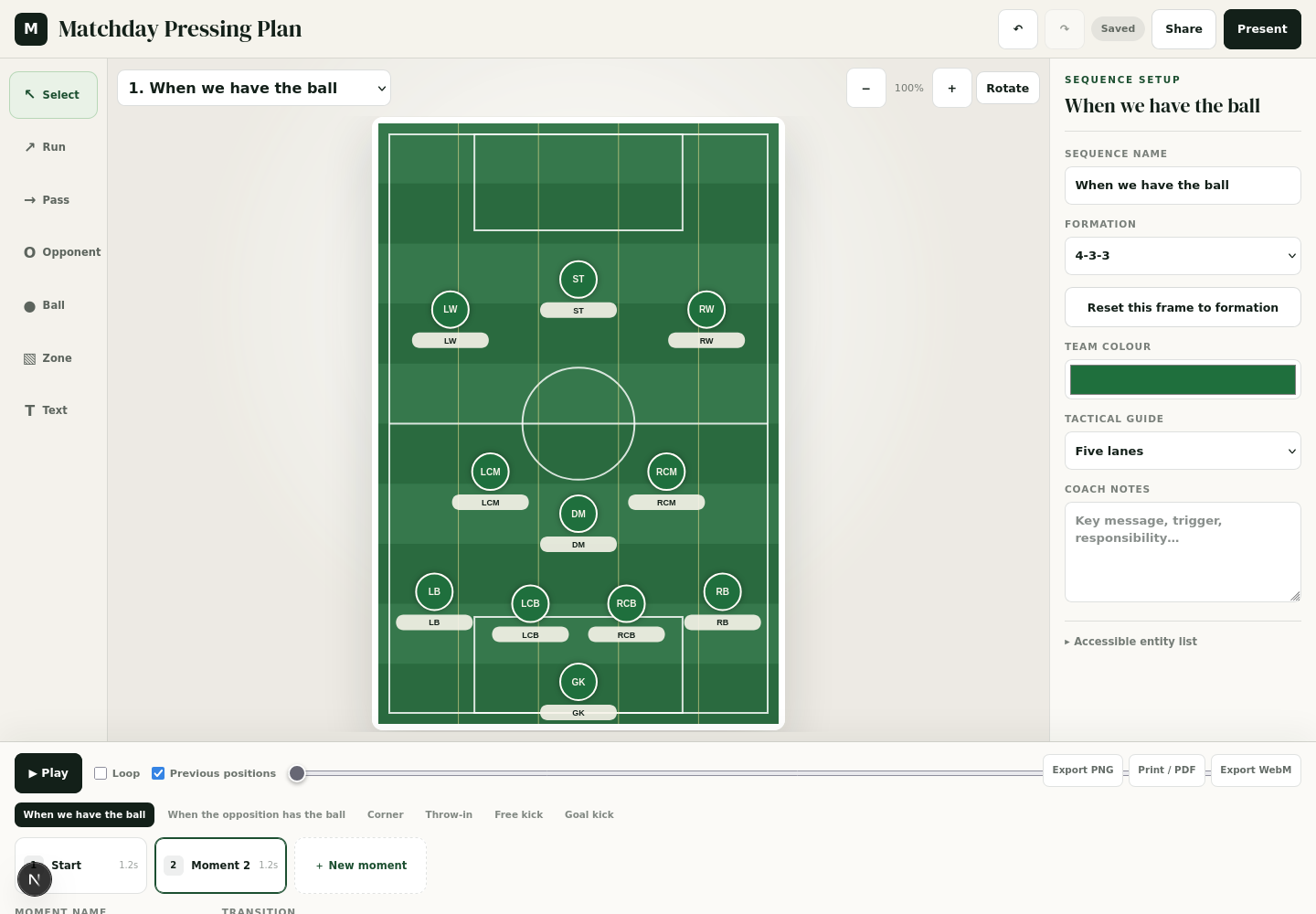
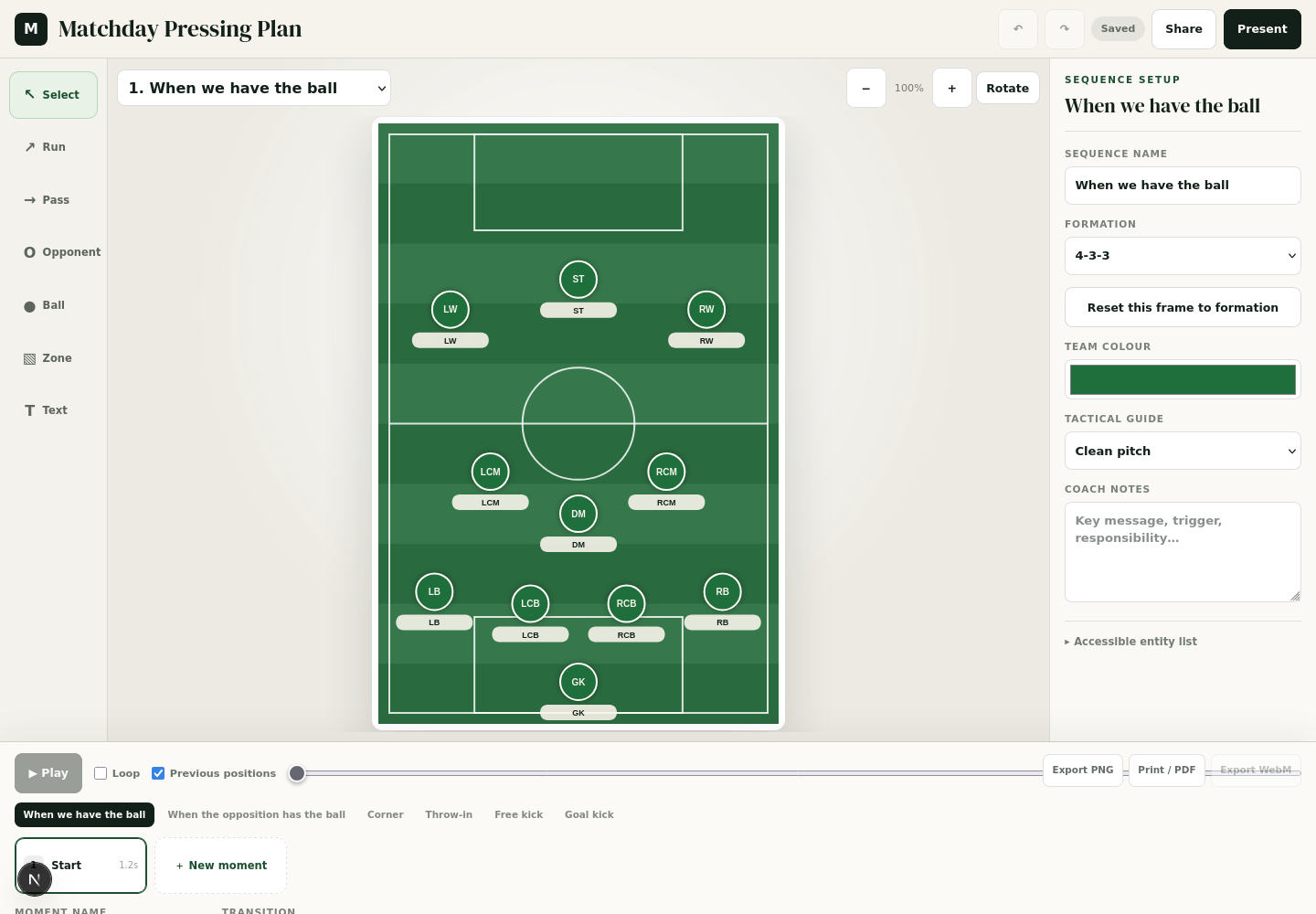
Matchboard uses a keyframe animation system. Instead of recording live dragging, each sequence contains one or more "Moments" along the bottom storyboard. To create animated movement, simply duplicate a moment, move your players or the ball into their new positions, and press Space or Play. Matchboard automatically interpolates and smoothly glides every player to their destination.
Key Instructions & Takeaways
- ✓Each moment in the storyboard is a complete tactical snapshot.
- ✓Click "New moment" or "Duplicate" to create the next step in the play.
- ✓Reposition players or equipment in the second moment.
- ✓Press Space or click "Play sequence" to watch the animated transition.
- ✓Adjust duration (e.g. 1500ms) or turn on previous-position ghosts to compare movement paths.
💡 Enable "Ghosts" in the storyboard toolbar to see faint outlines of where each player started in the previous moment.
Navigating the Pitch Workspace
Responsive canvas, rotation, zooming, and tactical overlays
The workspace gives you complete control over pitch presentation. You can rotate between portrait and landscape modes, zoom in to focus on tight box defending, and toggle professional tactical overlays to explain positional responsibilities to your squad.
Key Instructions & Takeaways
- ✓Rotate: Toggle between Portrait and Landscape orientation anytime.
- ✓Zoom: Adjust zoom from 80% to 150% for detailed half-space or box setups.
- ✓Tactical Guides: Display Pitch Thirds, Five Vertical Channels, Half-Spaces, Compactness Polygon, Passing Network Lines, or the Offside Line.
- ✓Responsive Canvas: Automatically scales to fit desktop monitors, touch laptops, and pitchside tablets.
💡 Use the Half-Spaces and Five Lanes guides when coaching positional play or inverted fullbacks.
Contextual Player Coaching Menu
Instant tactical actions on desktop right-click or tablet long-press
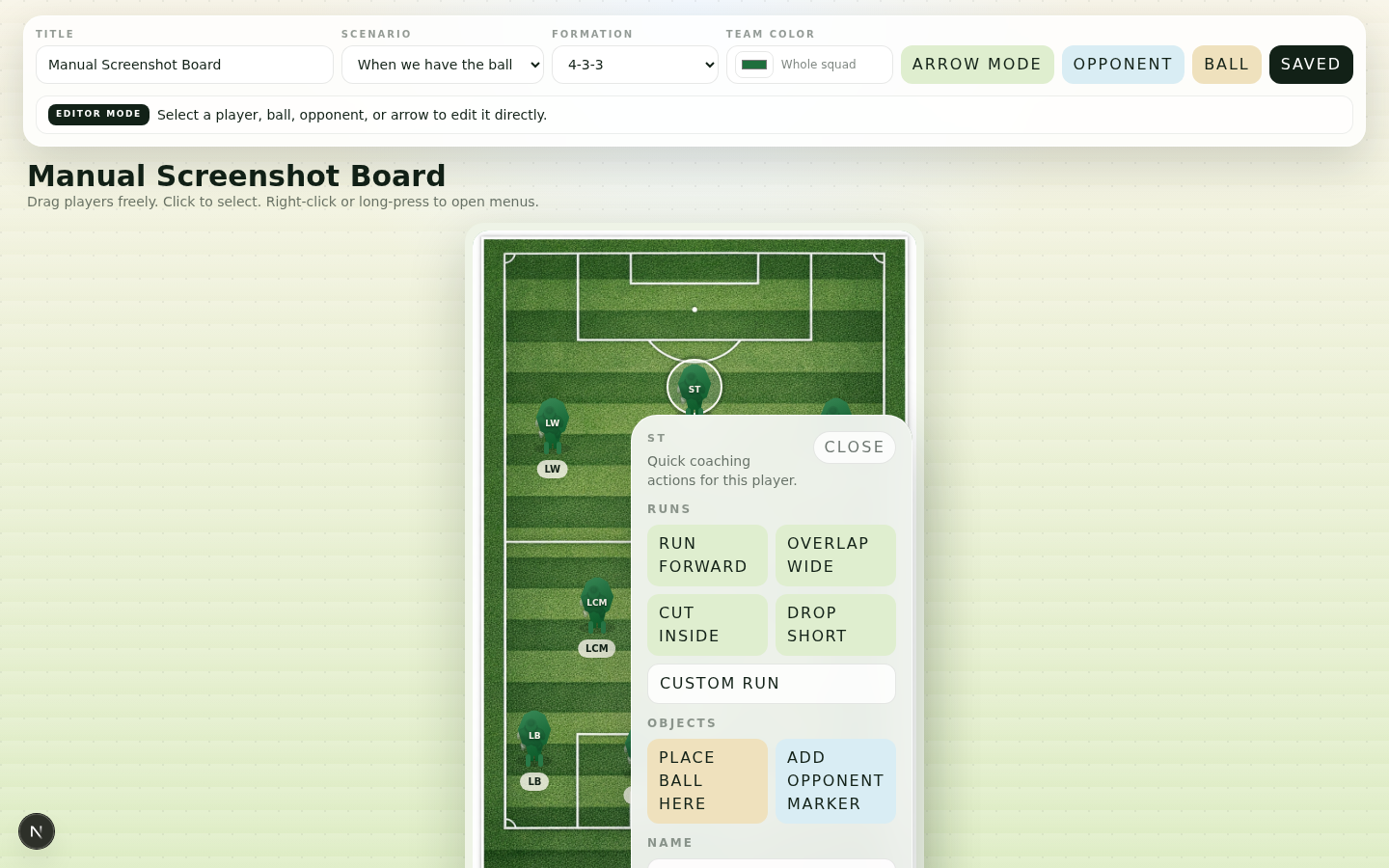
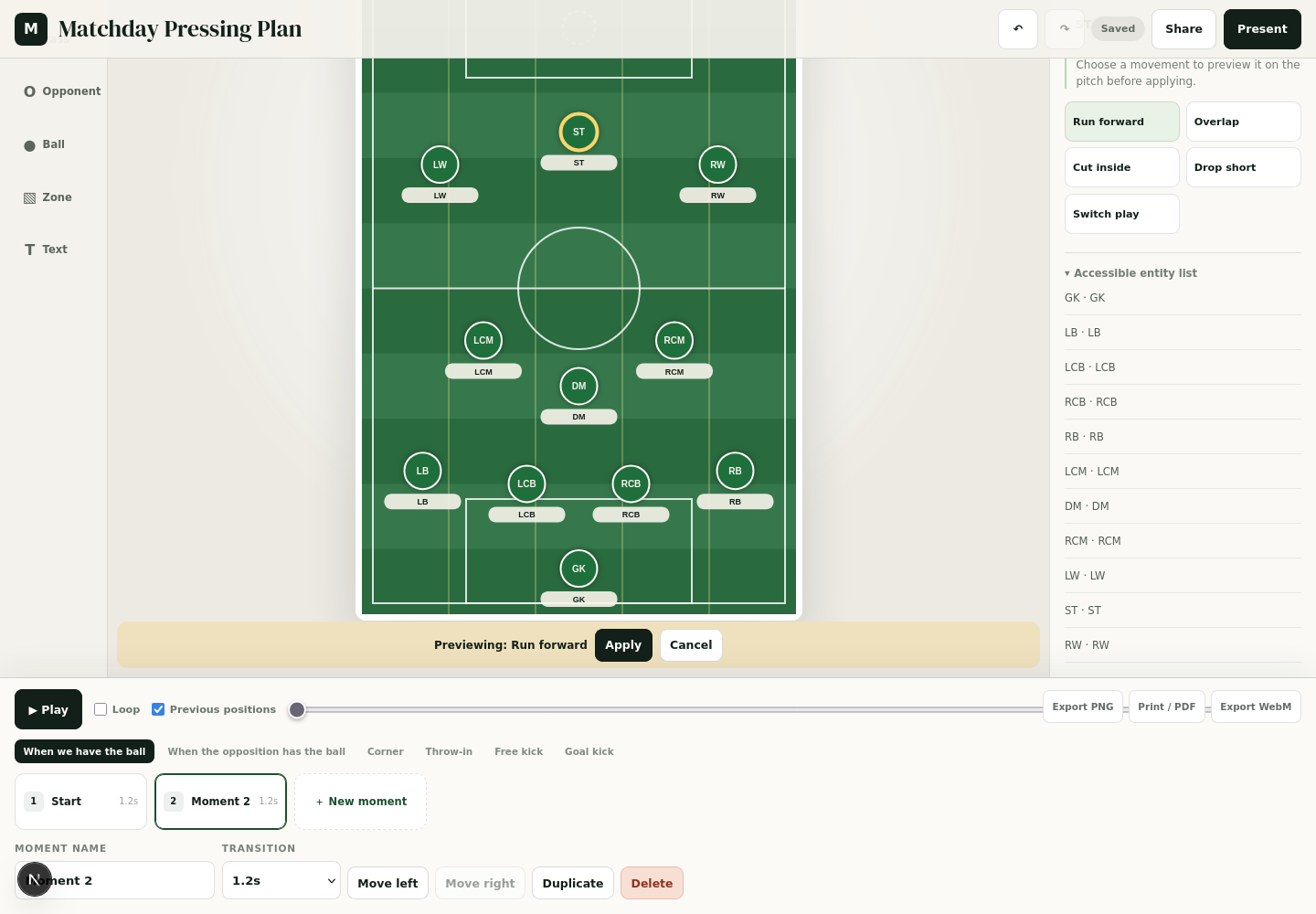
Right-clicking any player token on desktop or holding your finger for 450ms on a tablet/touchscreen opens a floating coaching menu directly over the player. You can trigger preset movement runs with ghost previews, place a ball at their feet, spawn an opposing marker, or rename the player inline without leaving the pitch.
Key Instructions & Takeaways
- ✓Trigger: Right-click on desktop, or long-press (450ms hold with haptic buzz) on touchscreens.
- ✓Movement Presets: 1-click Run forward, Overlap, Cut inside, Drop short, or Switch play across.
- ✓Ghost Preview: The proposed run appears with "Apply" and "Cancel" buttons before committing.
- ✓Drill Setup: Instantly place a match ball at the player feet or add a 1v1 opponent facing them.
- ✓Quick Rename: Click the pencil icon to edit the player name directly in the pitch overlay.
💡 Dragging or scrolling immediately cancels the long-press timer so you never accidentally open the menu while moving tokens.
Curved Movement Arrows & Passing Lines
Quadratic Bézier handles directly on the pitch for realistic runs
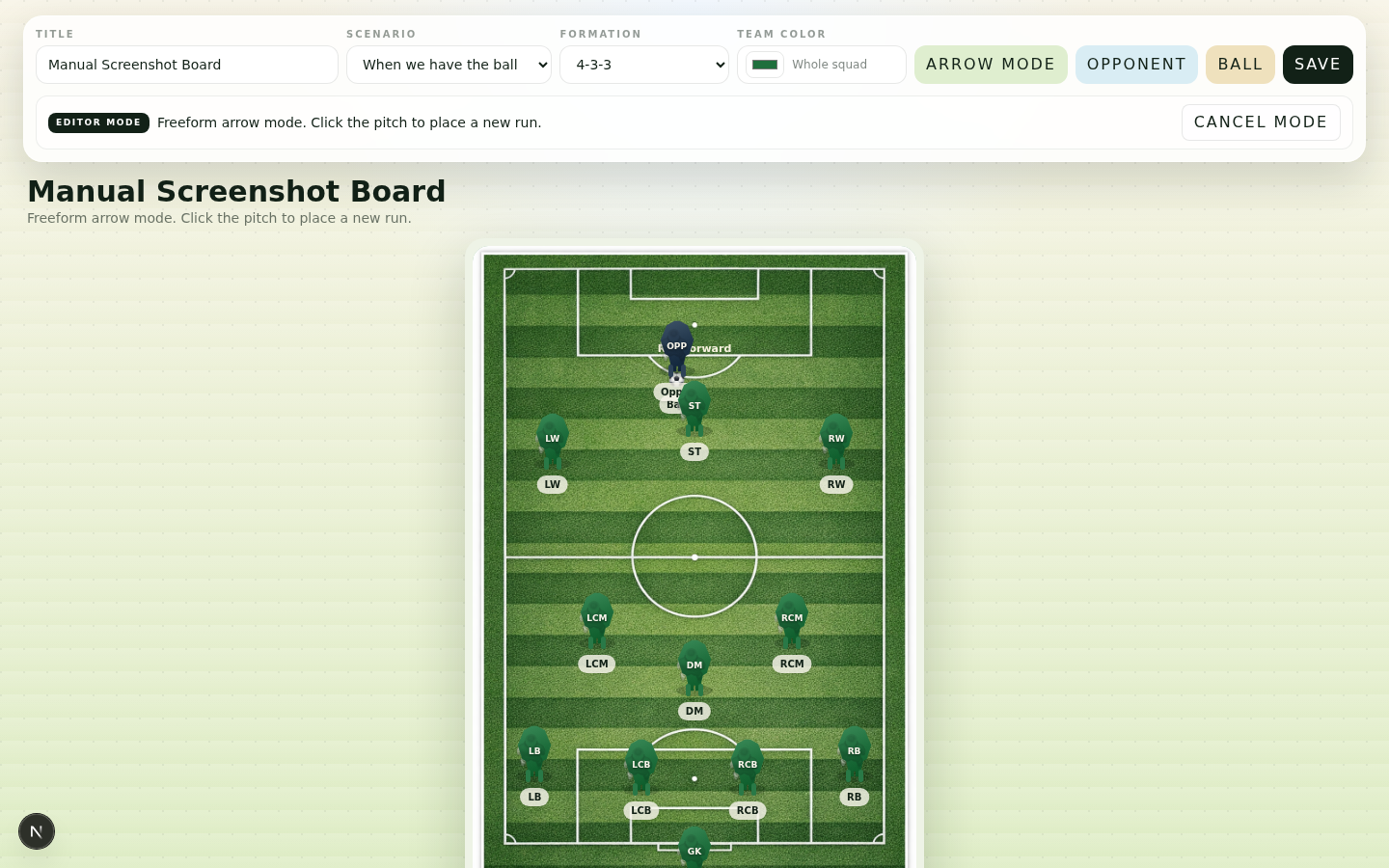
Footballers rarely run in straight lines. Matchboard features fully editable curved arrows. Simply select the Run or Pass tool, place the arrow, and drag the gold midpoint handle directly on the pitch to bend the run around defenders into a realistic arc.
Key Instructions & Takeaways
- ✓Draggable Shaft & Endpoints: Drag the line to reposition it, or drag either round endpoint to change direction and length.
- ✓Gold Bézier Control Handle: Drag the gold circle on the pitch to dynamically curve the run.
- ✓One-Click Arc Toggles: Use the inspector buttons to snap curve arcs inward or outward.
- ✓Dashed Passes & Solid Runs: Visual distinction between player off-the-ball runs and ball passes.
- ✓Animated Flow: Subtle moving dashes show the direction of travel during tactical presentations.
💡 Curved runs are ideal for demonstrating overlapping fullbacks, blindside striker runs, or winger arced pressing angles.
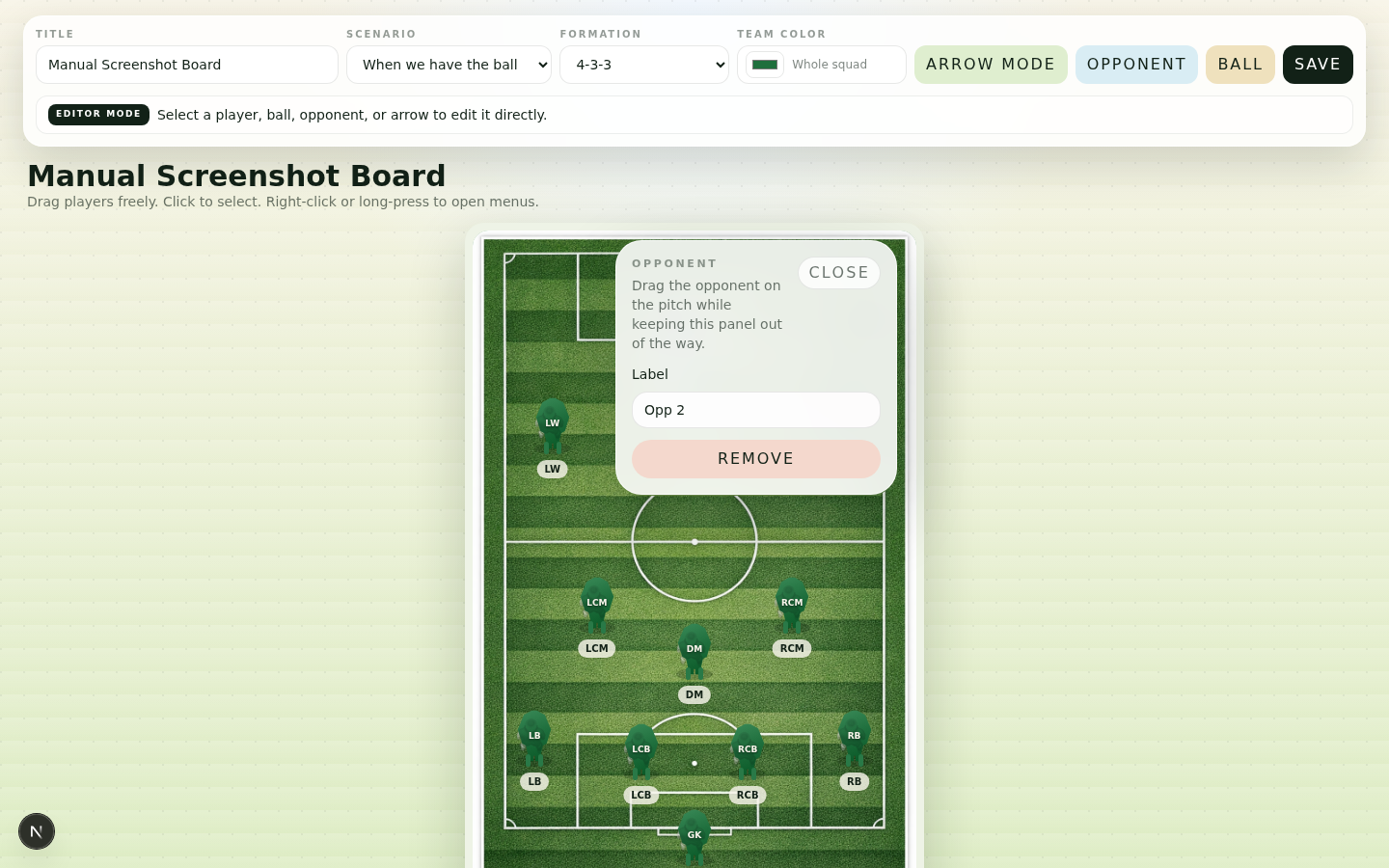
Training Equipment & 1-Click Opposition Setup
Cones, mannequins, mini goals, hurdles, and mirrored opponent formations
Turn any tactic into a complete training drill. Use the equipment rail to place training cones, free-kick mannequins, mini target goals, and agility hurdles. When preparing for matchday, deploy a complete 11-player opponent shape in one click.
Key Instructions & Takeaways
- ✓Equipment Tokens: Labeled Cones, Free-kick Mannequins/Dummies, Mini Target Goals, Agility Hurdles, and Match Balls.
- ✓1-Click Opposition Presets: Deploy 4-4-2, 4-3-3, 4-2-3-1, 3-5-2, 5-3-2, or 4-5-1 mirrored across the pitch.
- ✓Badge Labels: Opponents show clear tactical role keys (e.g. OPP-ST, OPP-CB, OPP-CM) for clear reference.
- ✓Fast Reset: Clear all opponents with one button when transitioning between drill phases.
💡 Use mini target goals on the wings to coach wide counter-pressing recovery targets in small-sided games.
Tactical Units & Synchronized Multi-Player Dragging
Shift entire back lines, midfields, or pressing units together
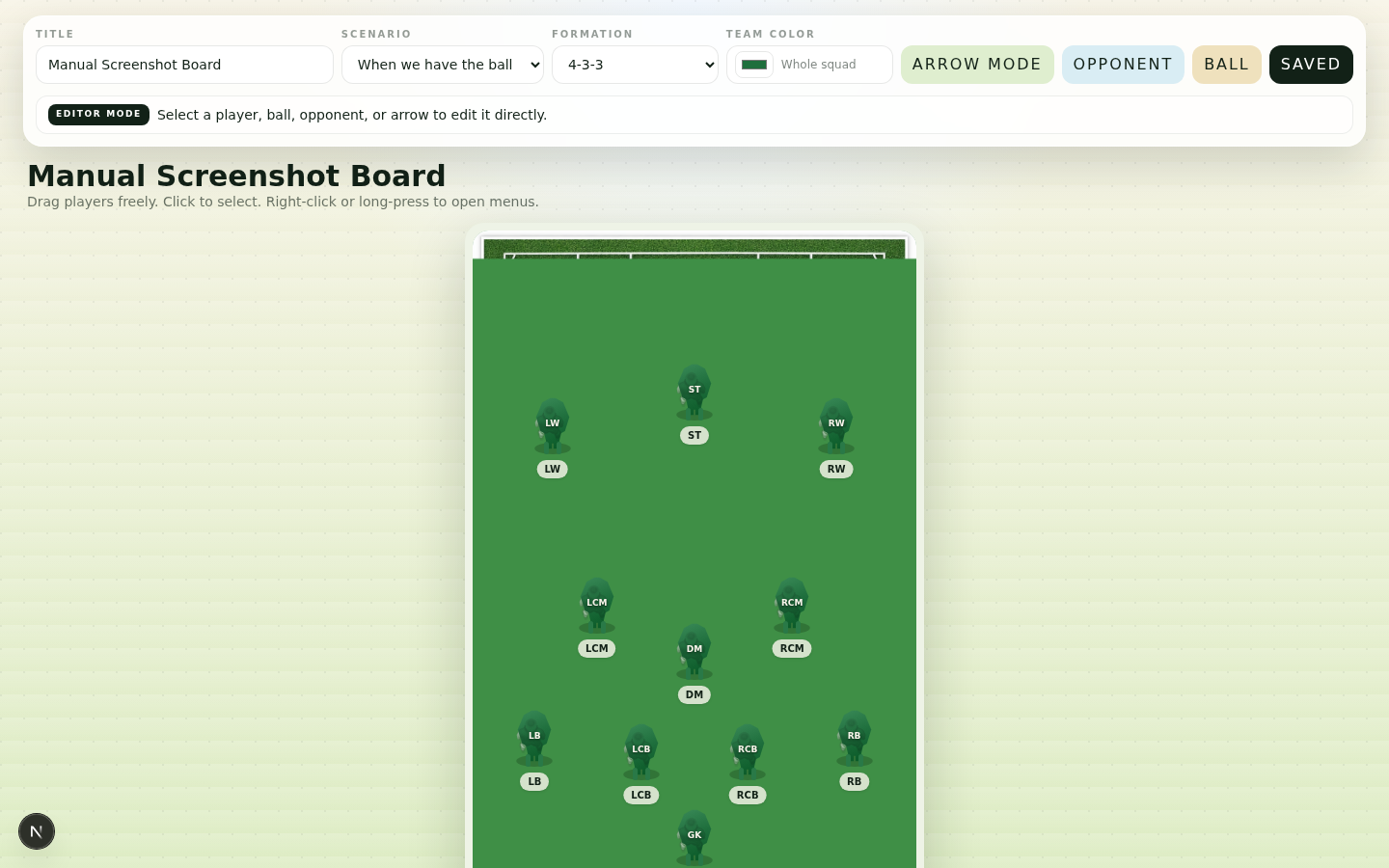
Coaching team compactness requires moving defensive or midfield lines in unison. With Shift+Click multi-selection or the 1-tap "Select Defense" / "Select Midfield" buttons, you can select multiple players and drag any one of them to move the entire unit across the pitch synchronously.
Key Instructions & Takeaways
- ✓Multi-Select: Hold Shift while clicking player tokens, or click "Select Unit" in the context menu or inspector.
- ✓Synchronized Dragging: Dragging any selected player moves all players in the unit while preserving their exact spacing and shape.
- ✓Unit Nudge Controls: Use the directional nudge buttons in the inspector to step lines forward, back, or sideways.
- ✓Tactical Cohesion: Perfect for demonstrating stepping up for an offside trap or sliding across to cover the weak side.
💡 Select your entire 4-man backline and drag them forward 15 meters to demonstrate maintaining vertical compactness when your team presses.
Chapter 07 · Matchday & Delivery# anchor Matchday Tactical Dossier & Print Pack
Dedicated high-resolution printable pack with set pieces and lineups
Click the Dossier button in the top bar to open the printable Matchday Pack (/editor/[id]/dossier). Built for physical dressing room handouts, staff binders, and PDF exports, the dossier includes starting XI tactical responsibilities, substitute benches, set-piece routines, and frame-by-frame pitch diagrams.
Key Instructions & Takeaways
- ✓Starting XI Architecture: High-resolution vector SVG pitch diagram with player roles and shirt numbers.
- ✓Set-Piece Handbook: Attacking and defensive corner setups, direct free-kick routines, penalty takers, and captains.
- ✓Sequence Playbook: Visual breakdown of all tactical moments with individual pitch diagrams and coach notes.
- ✓Ink-Saver Mode: Instant toggle between color stadium grass and a printer-friendly high-contrast line layout for clean black-and-white printing.
💡 Print copies of the set-piece handbook before away matches so every player has their exact marking assignments in the dressing room.
Chapter 08 · Matchday & Delivery# anchor Presentation Mode, Sharing & Offline PWA
Laser pointer, split presenter notes, warmup loop, and instant QR sharing
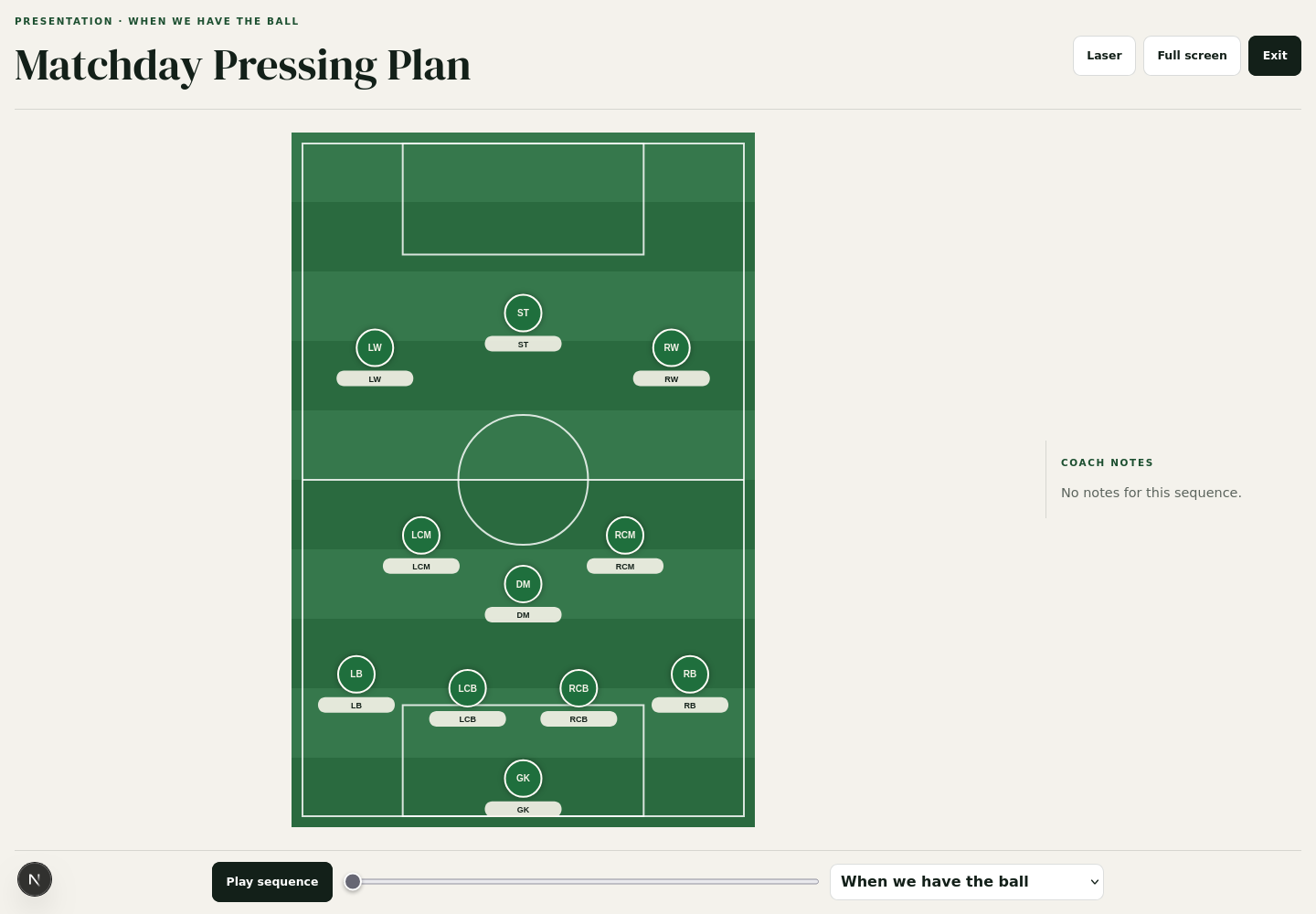
When it is time to deliver the tactical briefing, click "Present" for a clean, distraction-free view designed for projectors, TVs, and tablets. Matchboard works completely offline as an installable PWA with automatic IndexedDB synchronization.
Key Instructions & Takeaways
- ✓Audience-Clean Pitch: Removes all tool rails and editing handles, leaving a broadcast-quality tactical pitch.
- ✓Laser Pointer: Click the Laser button to point out spaces, passing lanes, and player triggers on touchscreens.
- ✓Presenter Split View: Shows coach notes on your personal device while presenting the pitch on screen.
- ✓Auto-Advance Loop: Automatically cycles through sequences during pre-match warmups in the dressing room.
- ✓Read-Only QR Code Sharing: Generate instant read-only links and QR codes for players to review on their phones.
- ✓Offline Resilience: Autosaves locally; works without internet on matchday buses and away dressing rooms.
💡 Add Matchboard to your tablet home screen via "Add to Home Screen" to run it as a full-screen, offline coaching app.